The TUI
A tour of the complete user-facing interface: the three panes, tasks and sessions, files and review, Settings and the Inbox, full-window pages, updates, attachments, and narrow terminals.
This page explains what the features are for. The key tables live in Keybindings; the mental model behind tasks and sessions lives in Concepts.
Workspace, focus, and mouse
The normal workspace has three columns:
- Tasks is a tree of project → Task/worktree → terminal tab. Every level is always expanded. Selecting a tab opens that exact session.
- Workspace shows the active engine, shell, plugin, or read-only file tab. A Task can have several tabs, and a terminal tab can contain several splits.
- Files has All and Changes views for the selected Task's worktree.
Click a pane or row to focus it. F4 moves focus forward, ctrl+a h / l
moves left or right, and ctrl+q returns from the workspace to Tasks. From the
Tasks pane, right arrow enters the current engine tab. Mouse clicks select rows
and tabs; right-clicking a sidebar row opens the same common actions available
from the keyboard.
Zen mode (ctrl+a z) hides Files and lets the workspace use the freed width.
The Tasks rail remains visible. Below 70 columns, the separate
narrow-terminal layout takes over instead.
Status glyphs in the sidebar
Task rows carry worktree-level facts:
| Mark | Meaning |
|---|---|
▴ | Pinned Task |
+N / −N | Added and deleted lines in the worktree |
✓ / ✗ / • | Pull-request checks passing, failing, or pending |
| jump digit | The ctrl+2 … ctrl+0 shortcut currently assigned to this row |
Session state belongs to the engine tab that runs it, so the status glyph sits on the tab rows underneath:
| Glyph | Meaning |
|---|---|
| spinner | Engine is working (also shown while a worktree materializes or deletes) |
? | Needs your input — a permission prompt or a question |
● | Turn finished, and you haven't looked yet |
○ | Idle or not yet observed. Includes a finished turn you've already seen |
◷ | Rate limited |
× | Error, including a failed worktree deletion |
· | Not an agent tab, or a custom engine without activity tracking |
A tab labelled ⚠ <name> is a live hosted session that was missing from the
saved tab list. Rove exposes it instead of hiding a running process and adopts
it back into the Task's tab state when possible.
Seen means consumed. A ● clears the moment you actually open that tab —
select the task, with that tab active. Moving the sidebar cursor over the row
doesn't count. Once seen, the badge drops back to ○; there is no lingering
checkmark. Rove saves the completion timestamp per task and tab, so restarting
or reattaching does not relight a completion you already read. A later
completion has a later timestamp and appears unread as usual.
Each tab row reports its own activity, not the task's roll-up — tab 2 can
spin while tab 1 rests. The tab strip at the top of the workspace uses a
similar but separate vocabulary (● running, ✓ done, ! error, ? needs
input, ○ idle).
Managing Tasks in the sidebar
Press / to fuzzy-search task titles, repositories, branches, and live tab
titles. Parent rows stay visible around a match. Arrow keys move through the
results, enter opens one, and esc restores the previous selection. [ / ]
switches between the Active and Archived lists when archived Tasks exist.
The selected Task answers these actions whether the cursor is on its worktree row or one of its tab rows:
rchanges the Task title.bopens a filterable local-branch picker and can also rename the current branch by accepting a new name. Project-main rows do not rename the repository's checked-out branch.vcycles through detected and custom engines. The new engine applies when the Task's engine session is reopened; it does not replace a running turn.oopens the Task directory in the configured GUI/workspace editor.shift+ppins or unpins a managed Task.shift+m, followed byj/k, reorders whole projects rather than individual Tasks.aarchives a managed or directory Task after confirmation, stopping its hosted sessions but preserving its directory, branch, tab snapshot, and engine history. Run it again in Archived to restore the Task.dis kind-aware: it forgets a project-main row, removes only the Rove record for a directory Task, or removes a managed Task and its worktree after the dirty-worktree safety check.
The confirmation dialogs state the exact deletion boundary before anything is changed. See Concepts → Task for the three Task kinds and Sessions for session teardown.
Inbox
ctrl+a i opens it. The Inbox answers two questions — what needs me? and
where was I? — with one section for each:
- ATTENTION — pending items, oldest first. An item appears when a turn completes, a session asks for input, hits a rate limit, or errors. Most items target one task-and-tab; events without a tab identity target the whole task instead. A newer event for the same target replaces the older one, and starting a new turn clears it.
- RECENT — the last handful of tabs you visited, most recent first. These aren't pending work, just jump targets; a spinner marks the ones still running.
enter opens the task and, when the episode names one, its exact tab; a
task-level episode leaves that task's current tab active. It also clears the
item. d clears without navigating (ATTENTION rows only — RECENT rows have
nothing to drop). You rarely need d: visiting a target clears its item
anyway — visiting any tab resolves a task-level episode — and stale items
whose tab or task is gone get cleaned up in the background.
F7 jumps straight to the oldest pending item across all projects,
without opening the Inbox, and cycles on repeated presses. It works even
while you're typing inside an engine session. With nothing pending it just
says so.
Diff review
The files pane shows what changed; diff review lets you respond. Press d
on a file to open its read-only diff, then:
j/kmove the line cursor.vanchors a range — move to the other end withj/k;vagain cancels. Skip this for a single-line note.cwrites a note for the current line or range.ssends all unsent notes — across all files of the task — to the engine as one prompt, and submits it.
The prompt the engine receives is just file, line numbers, and your words —
no code excerpt. The engine reads the worktree itself. Notes are stored per
task and survive restarts; the footer counts notes · unsent so you always
know what's pending. Sending doesn't switch tabs — keep reviewing while the
engine works.
Notes anchor to the file path and the line number displayed at the time you wrote them; they don't re-anchor when the diff changes underneath. These four keys are fixed and not rebindable.
Files pane
All shows the worktree's tracked and unignored files as a navigable tree.
Changes starts with uncommitted changes against HEAD. If the working tree
is clean and Rove can resolve a base branch, it automatically switches to the
whole branch-versus-base view so committed agent work does not disappear. Press
b to choose the scope manually; the header always names the active scope.
Open a text file with enter. Rove uses the configured terminal editor; for a
changed file it requests that editor's diff mode when Vim or Neovim is
available, otherwise it opens Rove's read-only preview. d always opens the
read-only diff in a workspace tab, a pastes an @path mention into the active
engine without submitting it, and o sends audio, video, or PDF files to the
system application. Remote files cannot use a local system viewer.
The pane watches local worktrees for changes and also supports r for an
explicit refresh. See Keybindings for the
complete navigation table.
Create a pull request with the active agent
Choose Create PR above Files or press ctrl+a p. This is an agent
workflow, not a direct GitHub API action: Rove inspects the current branch,
target branch, upstream, and dirty-file count, then submits a prompt to the
active engine. The prompt asks the agent to review the diff, commit remaining
changes, push the branch, and run gh pr create.
Watch the engine tab for progress, failures, or questions. The action is
unavailable on the target branch and requires an active engine session. A repo
can replace the prompt with .rove/pr-instructions.md; see
Per-repo init. Because the engine performs the
work, its own skills and approval rules still apply. The default prompt expects
an authenticated gh CLI and a pushable origin remote.
Creating a task
Focus the sidebar and press n. The New task dialog starts on a mode selector
and an engine selector; tab walks every field and the bottom-right Create
button, while ctrl+e cycles the detected engines from anywhere in the
dialog. Use ctrl+[ / ctrl+] to move between its three modes, or focus the
mode selector and use the left/right arrows.
- For Existing picks a local repository and the ref to branch from. Rove creates a new task branch and worktree, then opens it ready for the first prompt. The current repository and its checked-out branch are the defaults.
- For New Repo clones a Git URL into a chosen parent directory, derives an available folder name, then creates a task from the requested base branch. The parent directory is remembered for the next clone.
- Adopt Worktree imports existing git worktrees that are not already
tasks. The path-glob field filters by absolute path or basename;
entertoggles the highlighted row andctrl+aselects or clears all filtered rows. Adoption does not copy the directory or create a branch. Dirty and externally-created worktrees are allowed and labelled.
The chosen repository and engine become defaults for later task creation. Adopting several worktrees is item-by-item: successful imports remain even if another row fails, and Rove reports the result count.
Tabs and terminal splits
ctrl+t starts a fresh engine tab immediately; ctrl+e opens the full engine,
shell, and plugin picker. Tabs share the Task's worktree but keep separate
processes, scrollback, titles, and engine conversations. ctrl+[ / ctrl+]
switch tabs, F2 renames one, and ctrl+w closes it. A Task always keeps at
least one tab.
Inside a terminal tab, ctrl+\ splits right and ctrl+= splits down. New
leaves run your login shell in the same worktree. F3 cycles split focus;
F2 and ctrl+w operate on the active split before falling back to the whole
tab. Split layouts and custom names survive a Rove restart, but which split had
focus does not. If a split process exits, its leaf disappears and the remaining
layout collapses naturally.
The optional horizontal tab strip can be always visible, visible only for multiple tabs, or hidden. The sidebar tree still lists every tab in all three modes. Persistence and process-lifetime details live in Sessions.
Worktree audit and cleanup
Focus the sidebar and press x to open the full-window Worktrees page. It
audits every non-main local worktree for saved projects, including directories
created outside Rove, and shows dirty state, remote-branch state, PR/merge
signals and age. l lands a tracked task branch; d starts the guarded
worktree-removal flow.
Deleting a worktree is not the same as deleting a task, branch, or engine history. Dirty deletion requires a second, explicit force confirmation. Read Managing worktrees before using either mutation.
Settings
Open Settings with ctrl+a ,, or press s while the sidebar is focused.
Use j/k to choose a section, l or right arrow to enter its rows, h or
left arrow to return to the section list, and enter to activate a row.
- General controls theme, language, transparency, focus and split styles, notifications, keyboard hints, zen startup, editor choice, worktree location, terminal scrollback and the optional horizontal tab strip. It also shows available engine quota snapshots.
- Engines edits launch commands and display names, chooses the default,
and registers custom engines. On an engine row,
rrenames,xresets a built-in or removes a custom engine, anddmakes it the default. - Accounts is a read-only check of installed binaries and locally detected login state for Claude Code, Codex, Copilot and Kimi; login still happens in each engine's own CLI.
- Plugins enables or disables registered plugins live and edits settings declared by their manifests. Install, update, link and remove plugins from the shell.
- Keybindings shows the active prefix, loaded YAML overrides and warnings. Edit the displayed YAML path; changes reload live.
- Feedback submits a GitHub Discussion through an authenticated
ghCLI. - Dev contains reset, a backend-exit action and experimental switches. Reset
clears UI and task-index state after confirmation, but leaves worktrees and
engine history on disk. The current Restart backend action exits only this
TUI window; other attached windows and hosted sessions remain connected. Use
rove daemon restartfrom a shell when you need to restart the daemon itself.
The current PureTUI always keeps the Tasks rail visible in zen mode. The
legacy zen.keepTasks value and its Settings checkbox are retained in state
but do not change this layout.
Starting sessions: the new-session dialog
ctrl+e is the one dialog for starting anything. It lists your detected
engines, a shell, and any plugin panes. Two toggles set what happens:
tabflips the destination: a new tab in this worktree ⇄ a forked child task in a fresh worktree.ctrl+fflips the context: a fresh conversation ⇄ continue this one.
Flip either toggle and the list narrows to engines only — a shell can't continue a conversation, and a plugin pane isn't a task.
Continue uses a native conversation fork only when the selected engine is the source engine and supports one — currently Claude and Codex. Copilot and Kimi use a transcript handoff even when continuing to the same engine. A built-in source can also hand off to a different built-in or custom target. A custom source has no readable transcript, so Rove refuses to continue it instead of opening a context-free tab.
Fork a child task opens the quick composer (prompt, engine, branch). The child branches from your task's current branch, so committed work carries over — uncommitted changes stay behind; commit first if the child needs them.
ctrl+a c (continue in a new tab) and ctrl+a f (fork a child task)
open the same dialog with the toggles pre-set.
ctrl+a y is different: it opens the active Task's engine-owned history
picker so you can resume a conversation that is not already represented by a
tab. Availability and restart behavior vary by engine; see
Resuming a conversation.
Pages: ctrl+a 1 / 2 / 3
Three pages replace the workspace pane while the sidebar stays put. esc or
q closes a page; selecting a task in the sidebar also returns you to the
workspace. The chords stay live, so you can hop between pages directly.
Kanban (ctrl+a 1)
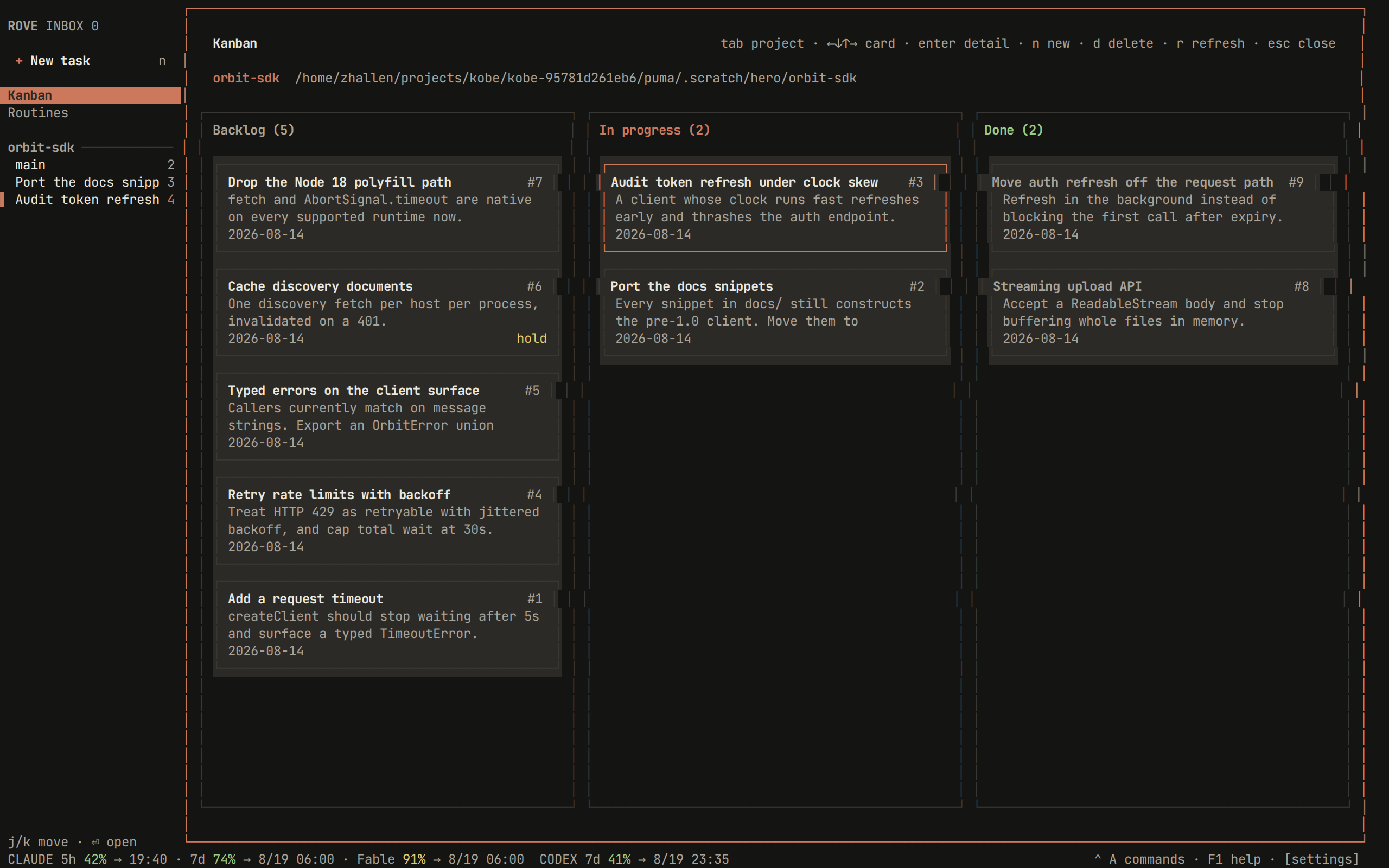
The issue store as a board, one project at a
time (tab cycles projects). Three columns:
- Backlog — open, doing, or on hold, not linked to a task.
- In progress — linked to a task. The link is the column: agents move
cards with
rove api issue-update --task, and in-progress cards show the linked task's live engine activity. - Done — status
done.
enter opens the detail drawer: edit the title and description, then start a
real session from the card — pick an engine, pick where it runs (the story's
own worktree, or the project checkout), and choose to follow it or stay on
the board. Starting links the issue and flips it to doing. n creates a
story, d deletes one (the issue record only — a linked task and its
worktree are never touched). The board refreshes every few seconds, so cards
moved by agents move on screen too.
For a linked story, the drawer also shows an EVENTS snapshot with up to the 12 most recent engine lifecycle events Rove still holds for that task. It is a point-in-time diagnostic view: reopen the drawer to fetch it again. A daemon restart clears the in-memory event ring, so an empty list does not mean the linked Task never ran.
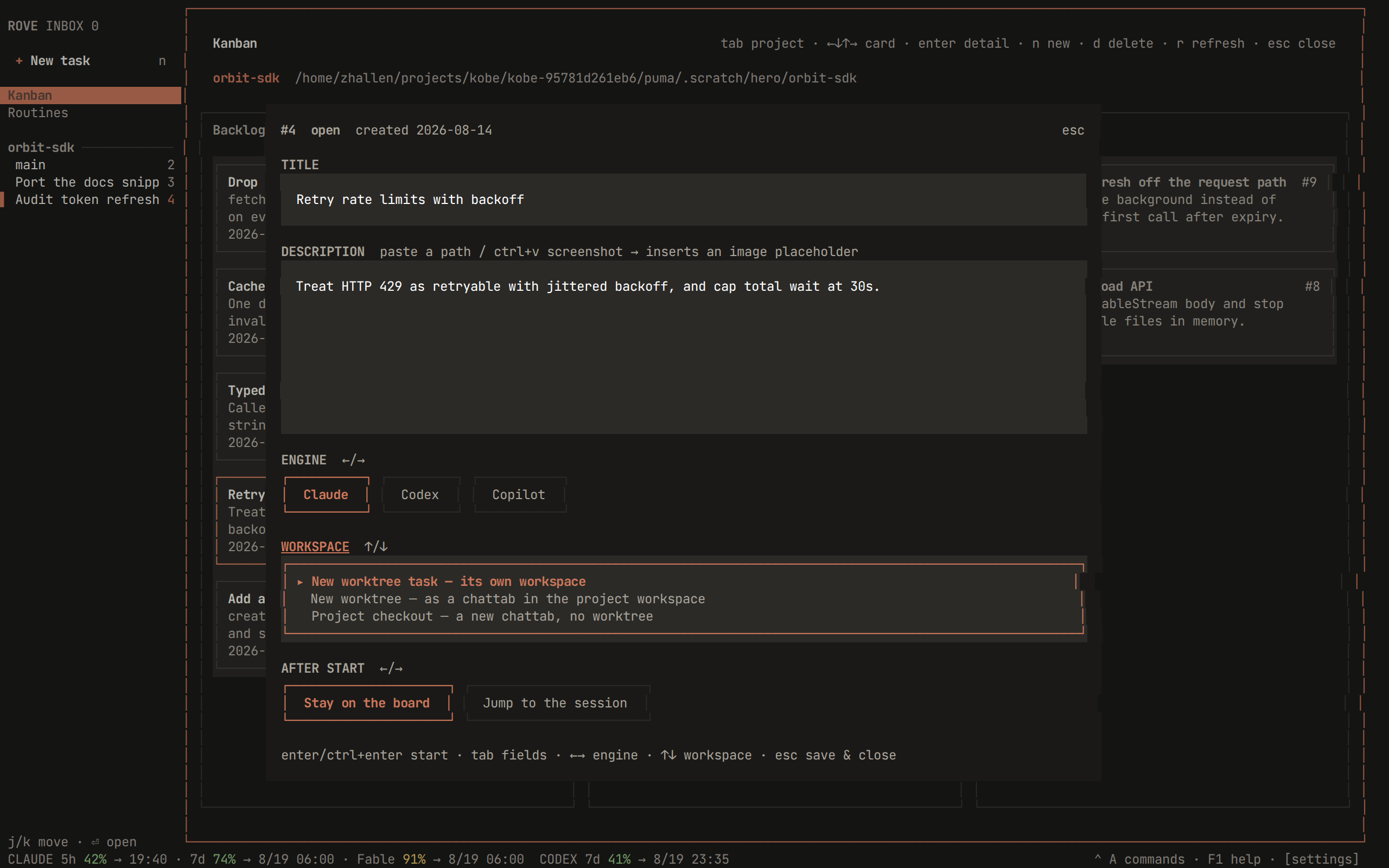
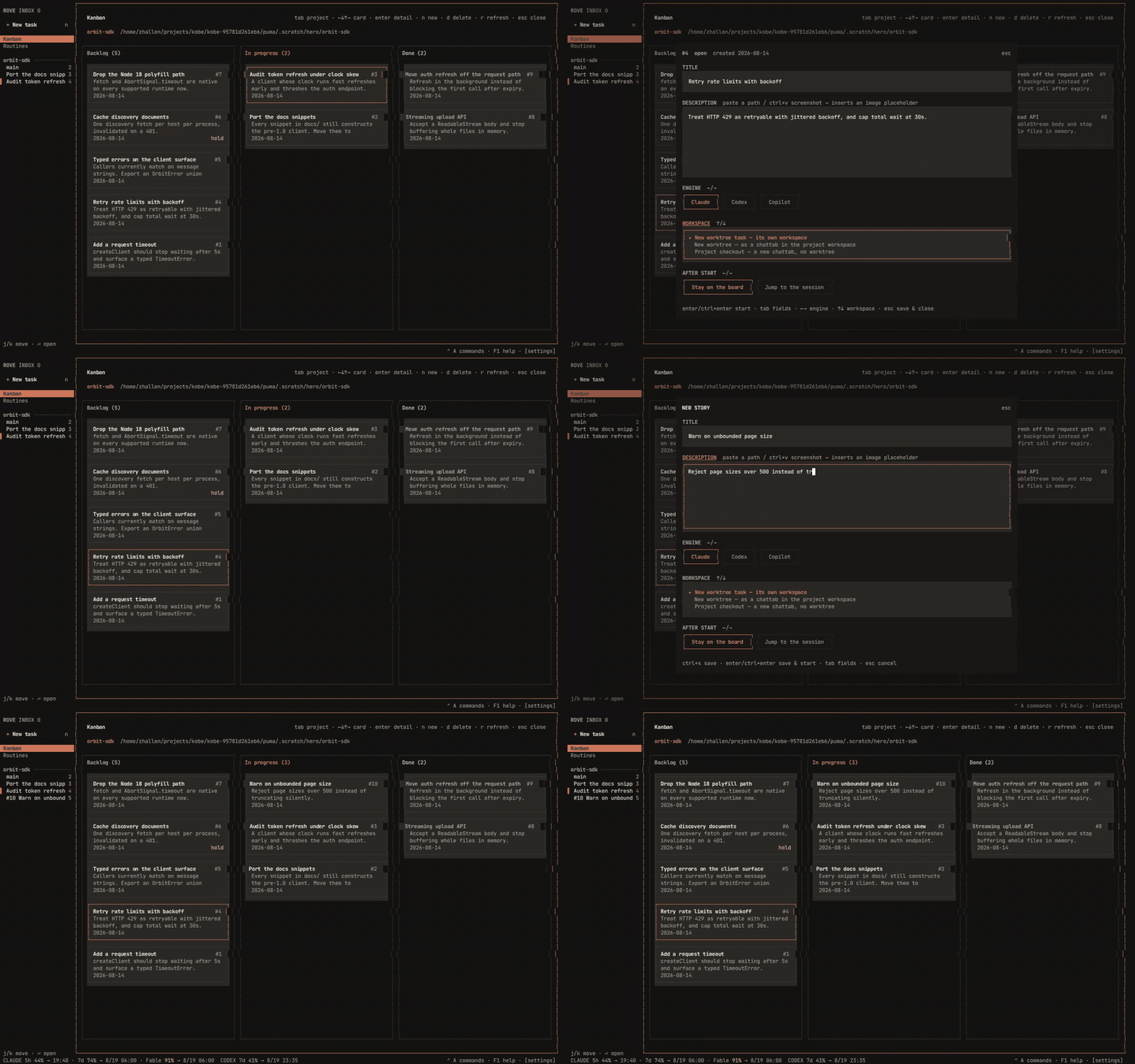
The board in motion — walking the cards, opening a story, filing a new one
with n, and an agent picking it up (rove api issue-update --task) while
the page is open, which moves the card into In progress on its own:
Routines (ctrl+a 2)
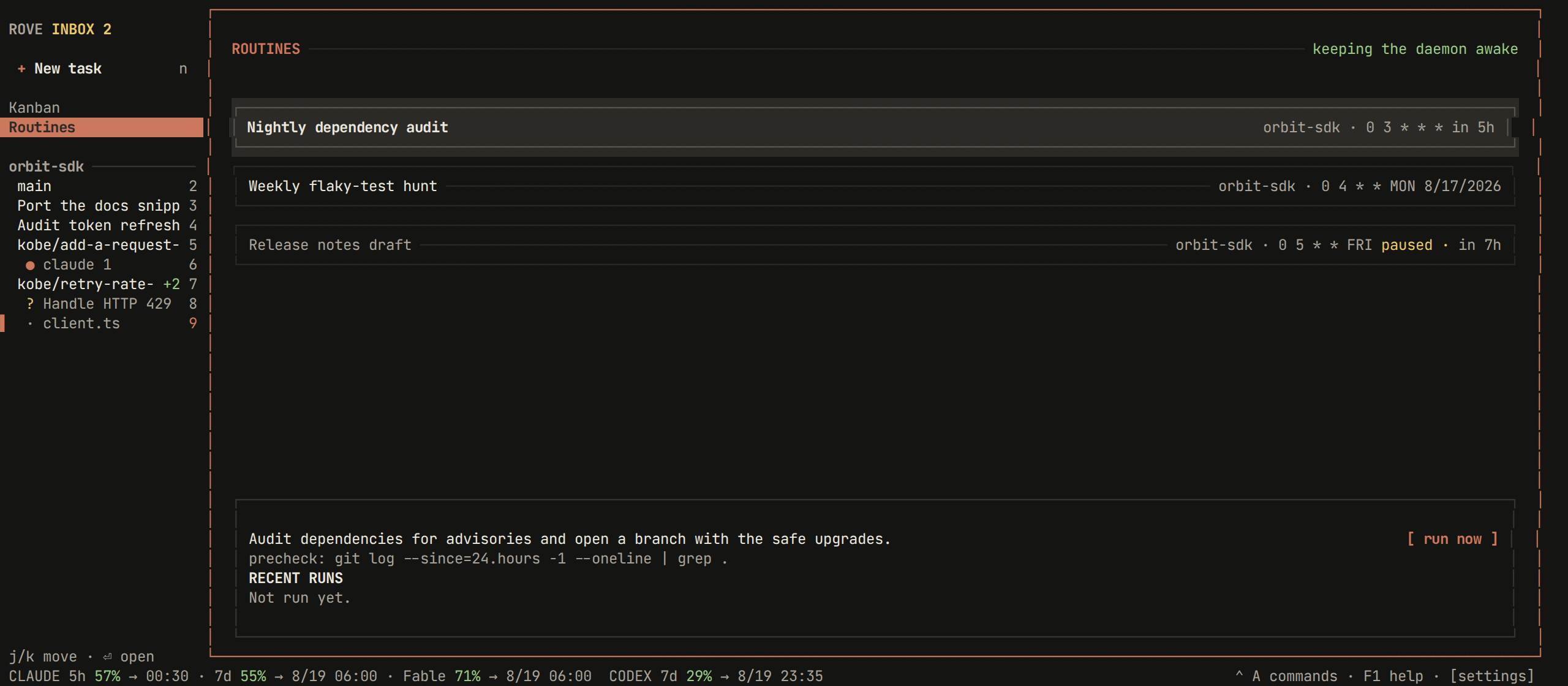
Daemon-owned scheduled prompts on five-field cron expressions. Each row shows the repo, the schedule, and the next run; the detail box below shows the prompt, the precheck if any, and the last few runs with their outcomes.
n creates a routine (name, repo, prompt, schedule), e pauses or resumes,
s runs one now, enter opens the task created by the latest run. There is
no in-page editing — recreate the routine, or use rove api routine-update
(which also sets prechecks; see rove api). An enabled routine keeps
the daemon alive so schedules fire with no TUI attached.
Walked through end to end, with the page pictured and the cron and precheck rules spelled out: Routines.
GitHub Issues (ctrl+a 3)
A read-only view of the repo's GitHub issues, fetched through the gh CLI —
if gh works in your terminal, this page works too; otherwise the page tells
you exactly what's missing. a filters to issues assigned to you, tab
switches repos, r refreshes past the cache.
enter starts a Rove task from the selected issue: the issue body arrives as
the first prompt (fenced, and explicitly marked as an untrusted report), and
the task keeps a linkedWorkItem pointer back to the issue. Nothing is
imported into the local issue store and nothing is written back to GitHub.
Updates and version warnings
When a newer release is available, the sidebar shows an update affordance and
u opens the Update page. It compares the installed and latest versions,
shows release notes for the versions in between, and offers three actions:
uruns the displayed self-update command, leaves the TUI, and reports the result in the terminal.ropens the latest release page in the system browser.qoresccloses the page without changing anything.
For a specific release or a browsable list of the latest 20 releases, use
rove update <version> or rove update list; see
CLI reference. Releases that cross a known
breaking version show a warning before installation.
An amber DAEMON OUT OF DATE banner means this TUI and the already-running
daemon are different builds. Finish any immediate interaction, run
rove daemon restart, and relaunch Rove. Hosted engine sessions live in the
separate PTY host and survive that daemon restart.
Narrow terminals (phone SSH)
Below 70 columns the TUI switches to one panel at a time — made for phone-sized SSH sessions. Nothing changes at 70 columns or wider, and there is no setting: it follows the terminal width.
- The task list and the workspace alternate: opening a task shows the
workspace full-width,
ctrl+qreturns to the list. No new chords. - The first sidebar row is
↩ Recent: <task>—enterdrops you back into the task you were last working in, and it survives reconnects. - The files pane is hidden; the pane-cycle keys skip it.
- The tab strip always shows — compressed to the active tab plus a
2/3counter. The usual tab chords still switch. - The footer keeps one quota chip per engine (
CLAUDE 42%) and shrinks the hints to bare keycaps. - Dialogs center themselves with tighter padding.
Attachments: drag and drop, paste
Drop an image (.png, .jpg, .jpeg, .gif, .webp) or a .pdf from
your file manager:
- Onto an engine session — the path lands in the engine's input, pasted but not submitted, so you can keep typing around it. The visible session catches the drop even when your keyboard focus is elsewhere.
- Into the quick-task composer or an issue drawer — the file becomes an
images[N]: /pathattachment line sent along with the first prompt.
ctrl+v in those dialogs does the same with the clipboard: a copied file
attaches by path, a raw screenshot is saved under ~/.rove/attachments/
first. Rove only ever passes paths — the engine reads the file itself.
Quota in the footer
For engines with a quota probe (Claude Code and Codex today), the footer
shows each usage window the vendor reports — e.g. CLAUDE 5h 42% → 14:00 · 7d 12% — with the percentage colored green below 75%, yellow from 75%, red
from 95%. The same numbers, same thresholds, appear in Settings → General.
The daemon refreshes quota roughly every 15 minutes, so treat the figure as approximate, not live. When Claude hits its subscription window, Rove schedules an automatic resume for the affected task and continues it once the window resets.